Provider Hours (Settings Tab)
How to Create Provider Hours
Section titled “How to Create Provider Hours”Purpose - Set the provider’s operating hours so the system knows when they are available to see clients.
Steps to Create Providers Hours
   * From the main menu on the left, click Settings   * In the Settings menu, scroll down and select Provider Hours (icon with a stethoscope)     * Select + Add Provider Hours   * Add Provider Hours
     * Search Providers -
       * ⚠️ A prerequisite is that the provider must already be added to the system during onboarding. If the provider does not appear in the search, contact the Support Team  ([ehrsupport@quiltedhealth.com](mailto:ehrsupport@quiltedhealth.com)) and they will assist with adding the provider.     * Locations - Select all locations where the provider will be working     * Location to Edit Availability - If multiple locations were selected, choose the specific location you want to edit. You can only edit one location at a time.   * Set Office Work Schedule - has two options:     * Regular Weekly Schedule - defines the provider’s standard weekly availability for scheduling appointments       * Once toggled on, Provider has a regular weekly schedule         * Turn each day on or off to indicate whether the provider works that day
         * Enter the provider’s start and end times for each selected day
         * Click the + button to add additional time blocks if the provider works multiple shifts in one day
           * Enter the opening and closing times (e.g., 09:00 AM – 05:00 PM). To add multiple time ranges in a single day (for lunch breaks or split shifts), click the + symbol.Example: Monday: 08:00 AM – 11:00 AM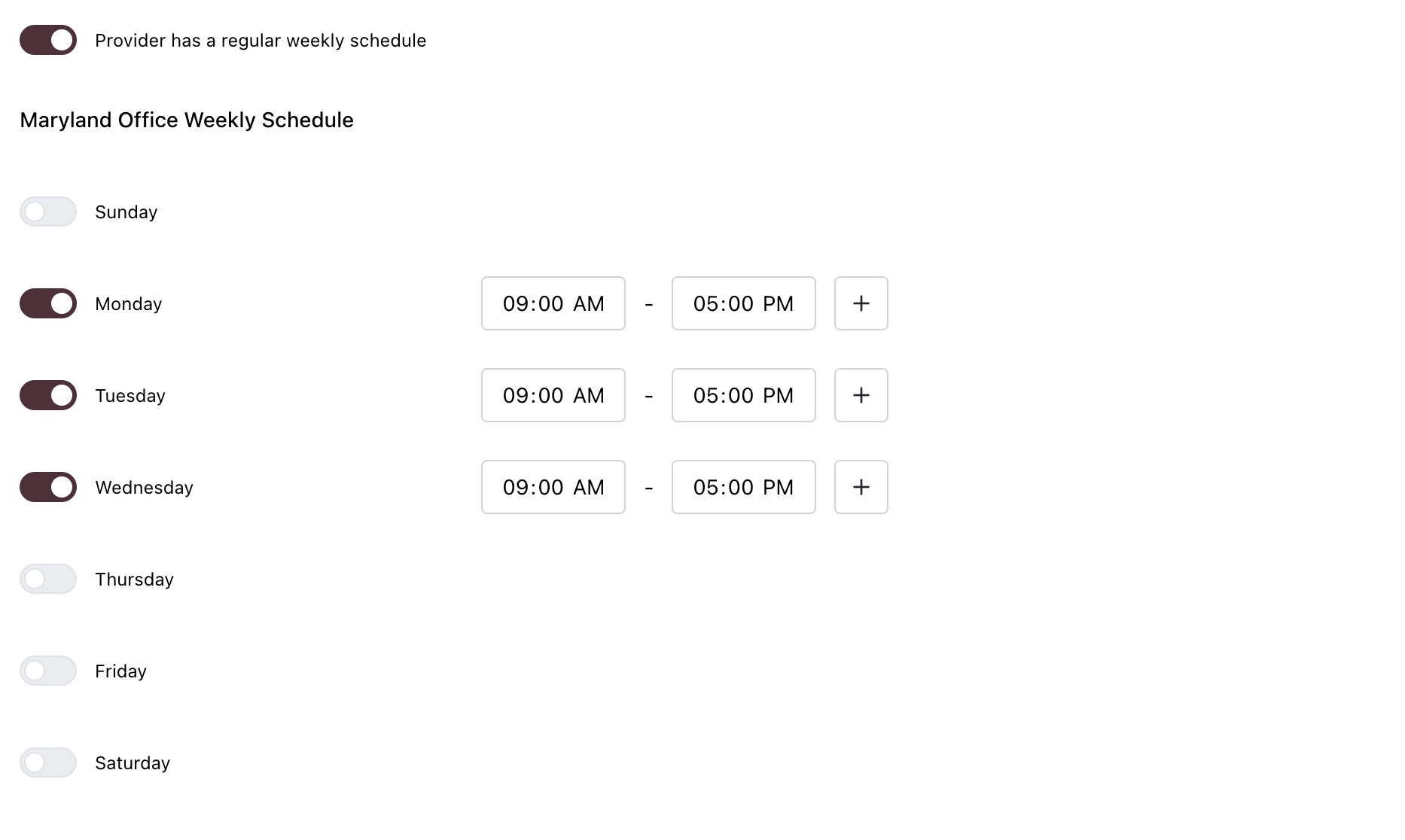
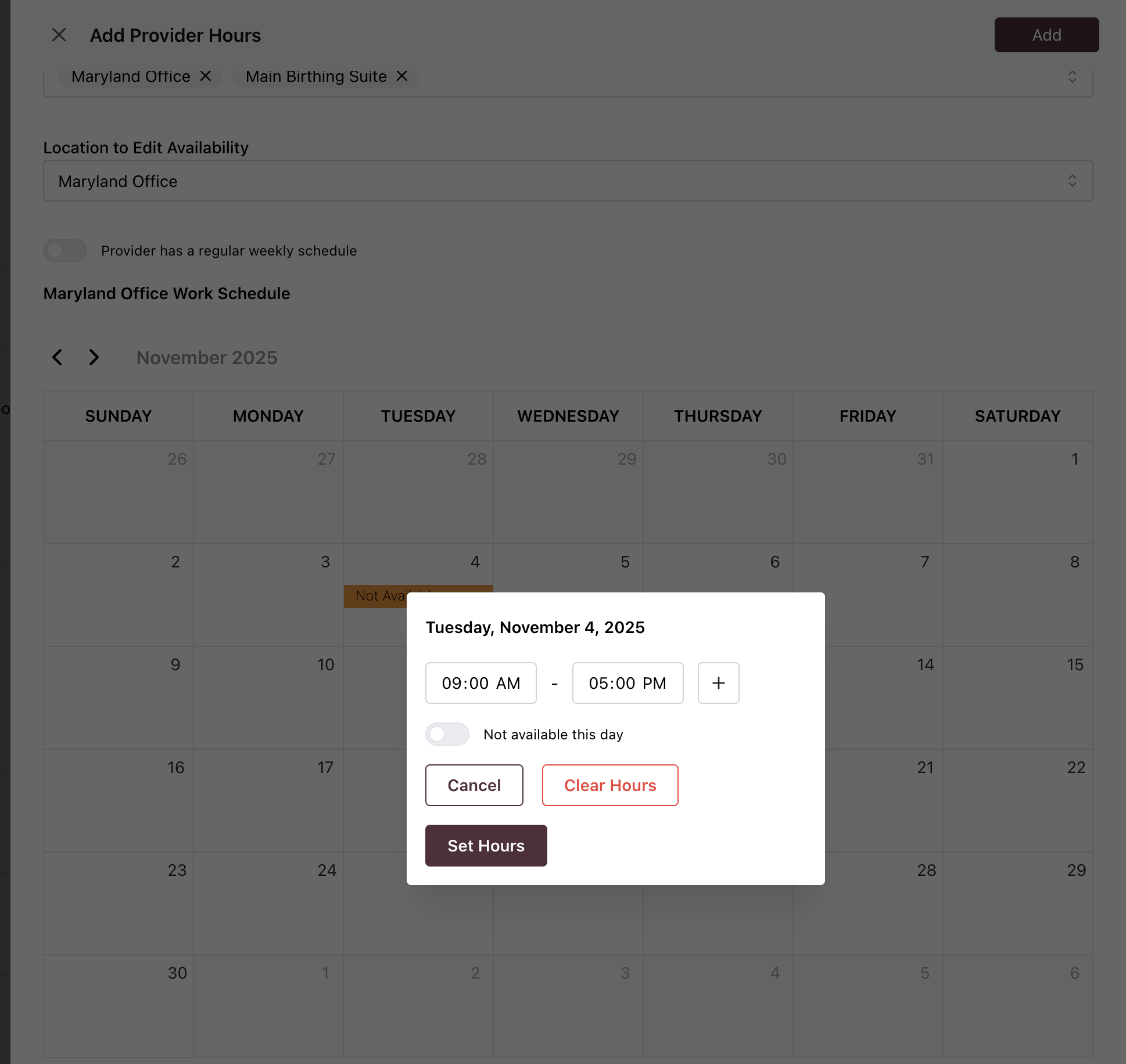
   * Customize Provider Schedule     * Setting Customized Daily Hours– Allows the provider to set their daily working hours, including selecting which days they are available and entering specific start and end times.     * When you click on a specific day in the calendar, a window will open showing the selected date. From here, you can:
       * Enter start and end times to set the provider’s working hours for that day
       * Click the + button to add additional time blocks if the provider has multiple shifts
       * Toggle Not available this day if the provider will not be working on that date
       * Select Clear Hours to remove any previously set hours.
       * Choose Set Hours to save the customized schedule for that day