File Upload
How to Upload, View, Download, Edit or Delete a file
Section titled “How to Upload, View, Download, Edit or Delete a file”Navigate to Files Tab
- Select a client that you have information that requires uploading
- In the client’s chart, navigate to the Files tab, in the top navigation bar

Steps to Perform File Actions
To Upload files
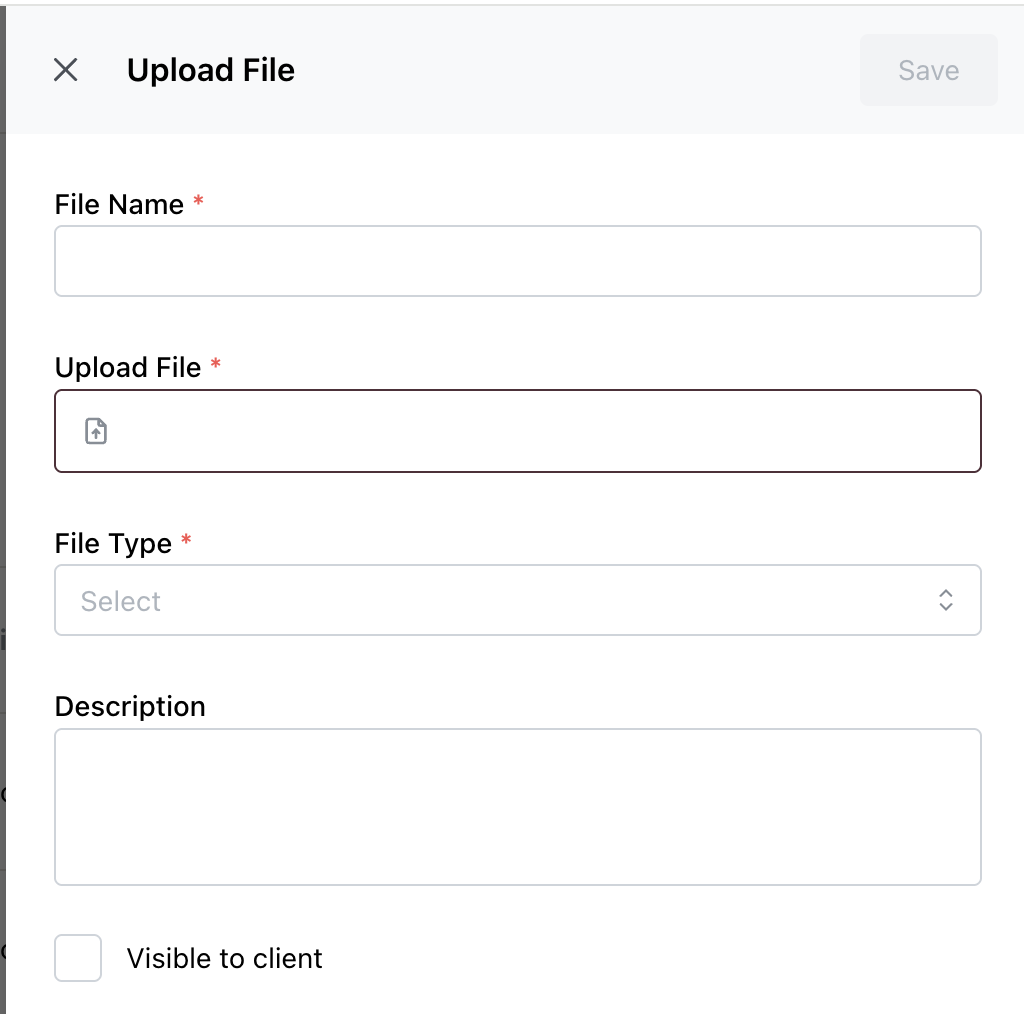
Section titled “To Upload files”- Click on Upload File
-
Create a File Name * (mandatory Field)
-
Upload File * (mandatory Field) - and choose the file from your computer
-
Select a File Type from the dropdown
-
Add a Description ((Optional)
-
Check Visible to client if you want the client to see the file (Optional)
-
Click Save to finish the upload
-
The three dots open the Actions Menu, where you can:
Section titled “The three dots open the Actions Menu, where you can:”- View the file
- Download the file
- Edit the file details
- Delete the file
View the file
- Click on View, to quickly review its contents without downloading it. Use this option when you need to verify or confirm details.
Download the file
- Click on Download, to share the file externally (in compliance with privacy rules) or store a local copy for reference.
Edit the file details
- Click on Edit, Allows you to update the File Name, File Type, Description, or Visibility to Client settings.
Delete the file
- Click on Delete
- A confirmation prompt will appear with the message:“Performing this action will permanently delete document.”
- Choose one of the following:
- Cancel – if you don’t want to proceed
- Yes, Delete – to confirm deletion
- If Yes, Delete is selected, the location will be removed from the list